
Ghostty 是一款基于 GPU 硬件加速的跨平台终端模拟器,采用原生 UI 打造,提供极致流畅的性能体验,同时与操作系统原生体验完美融合。相比 Warp 等终端,Ghostty 开箱即用、零配置起步,且高度可定制。官网地址:ghostty.org。
安装方式
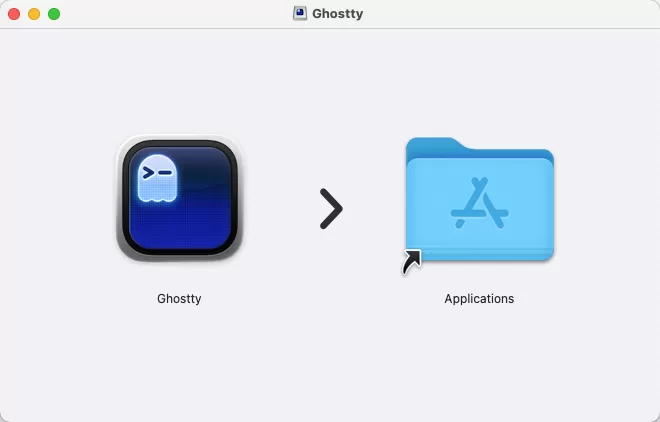
安装包安装:访问官网下载系统对应安装包,双击后将 Ghostty 拖入应用程序文件夹即可完成安装。
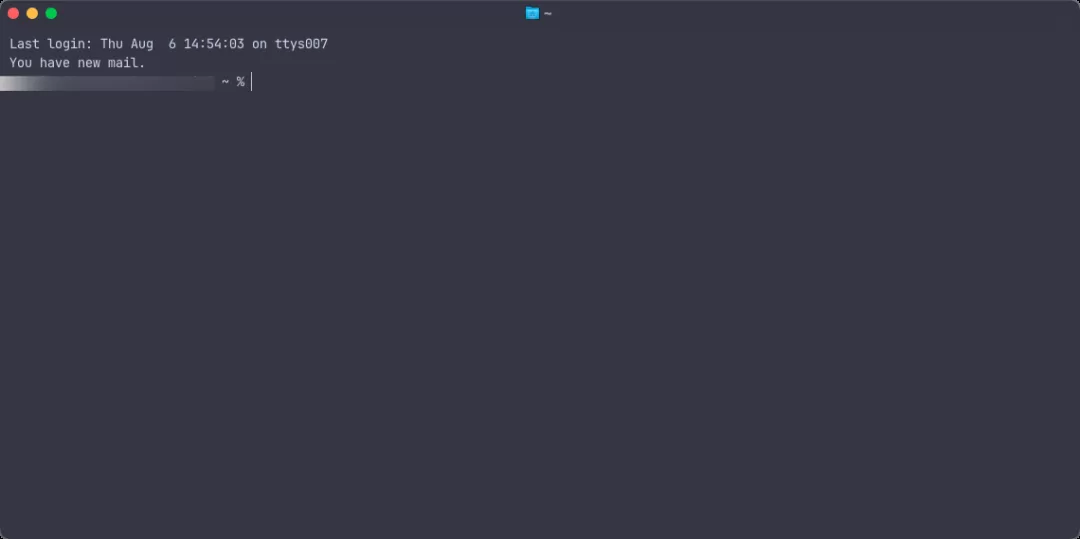
Homebrew 安装(macOS):
brew install --cask ghostty常用快捷键
| 功能 | 快捷键 |
|---|---|
| 新建窗口 | ⌘N |
| 新建标签页 | ⌘T |
| 向右分屏 | ⌘D |
| 向下分屏 | ⇧⌘D |
| 关闭分屏 | ⌘W |
| 关闭标签页 | ⌥⌘W |
| 关闭窗口 | ⇧⌘W |
| 关闭全部窗口 | ⌥⇧⌘W |
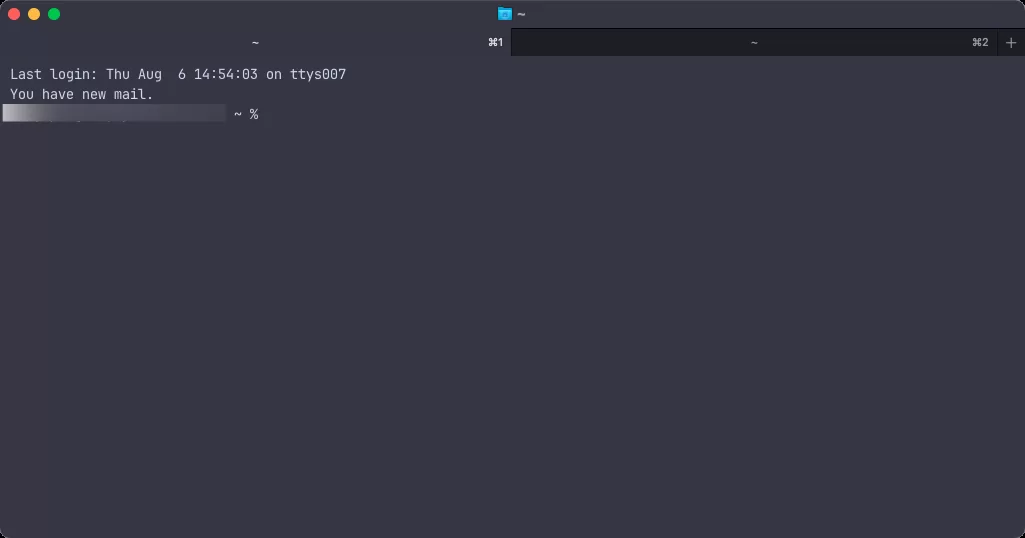
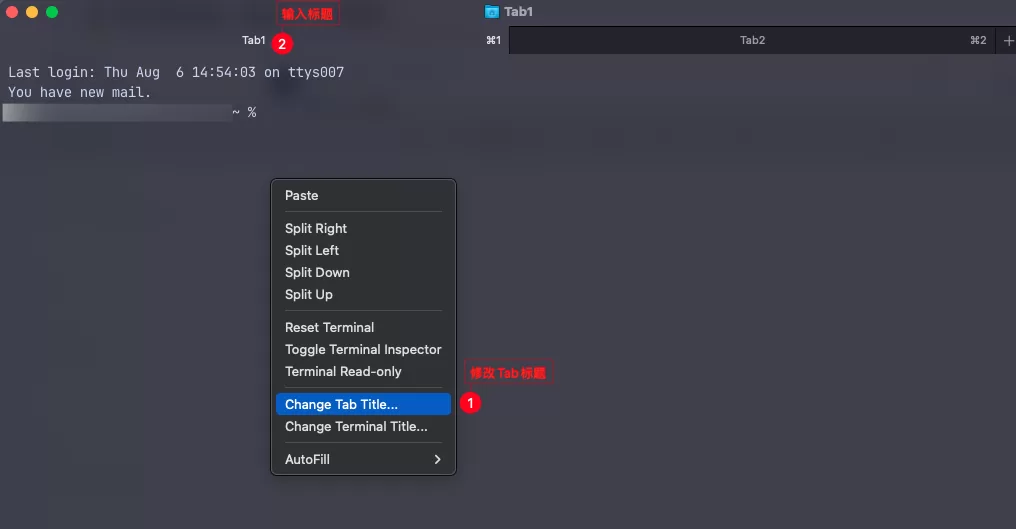
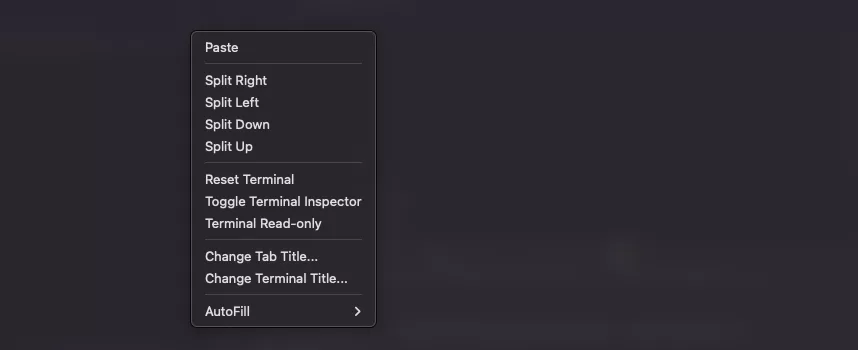
右键 Change Tab Title 可以对标签页进行重命名:
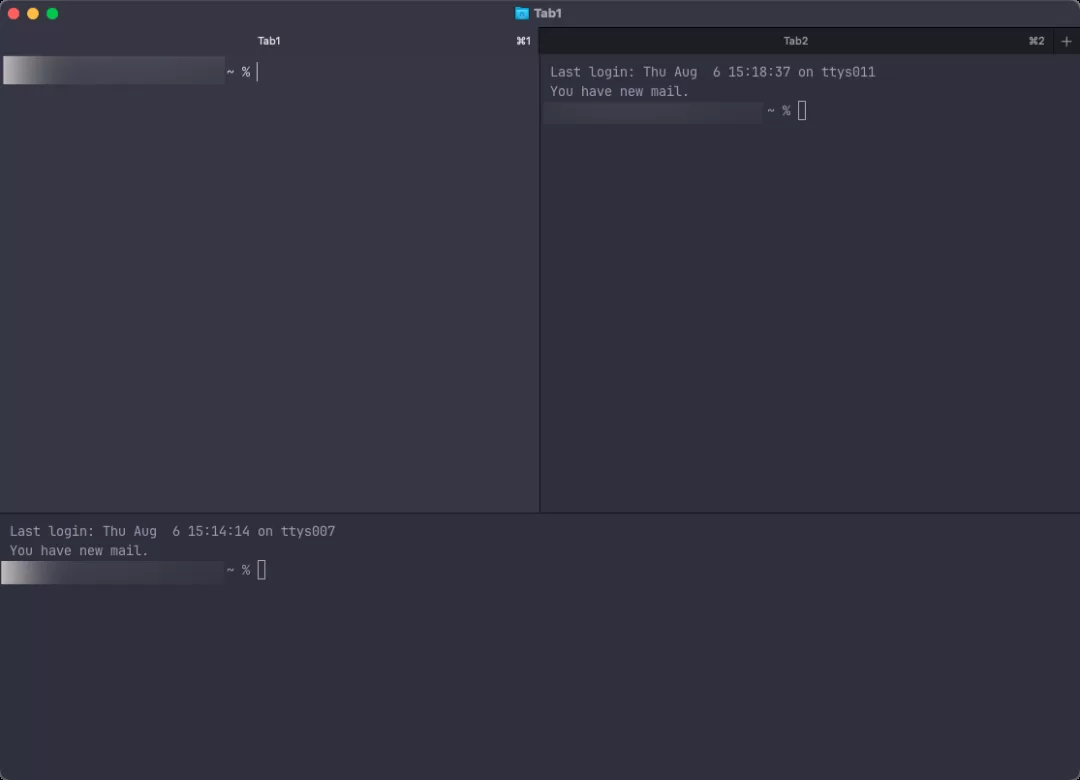
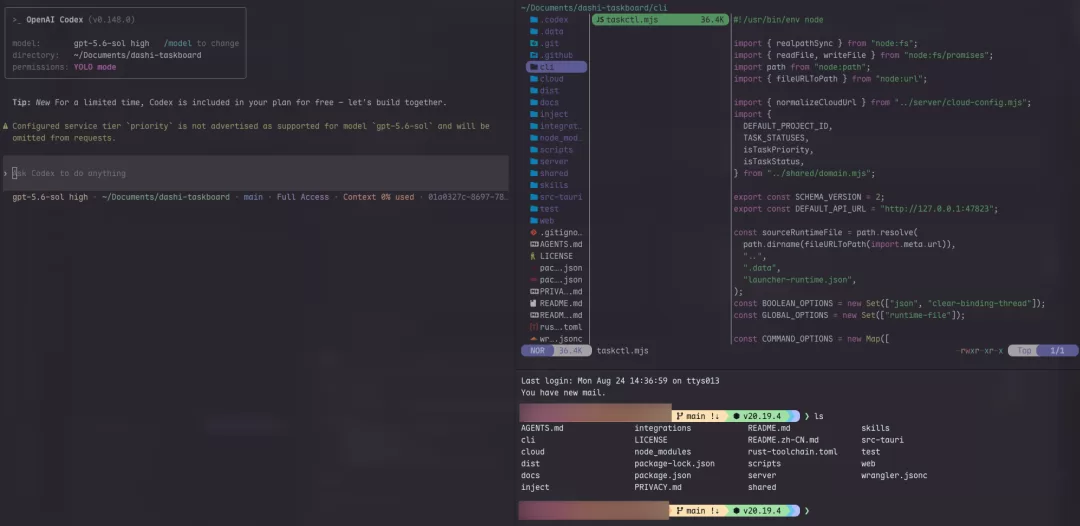
使用 ⌘D 或 ⌘⇧D 进行向右或向下分屏:
常用命令速查
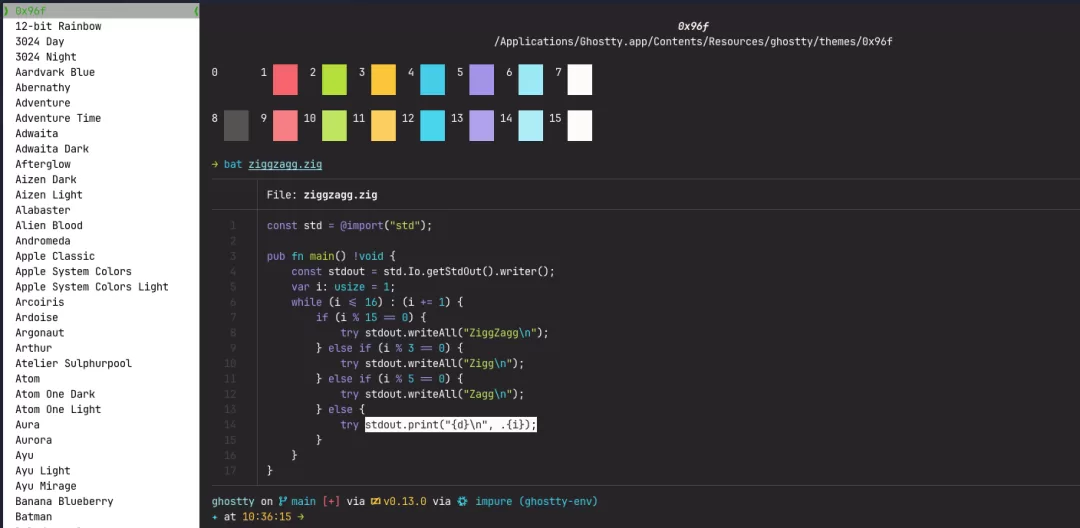
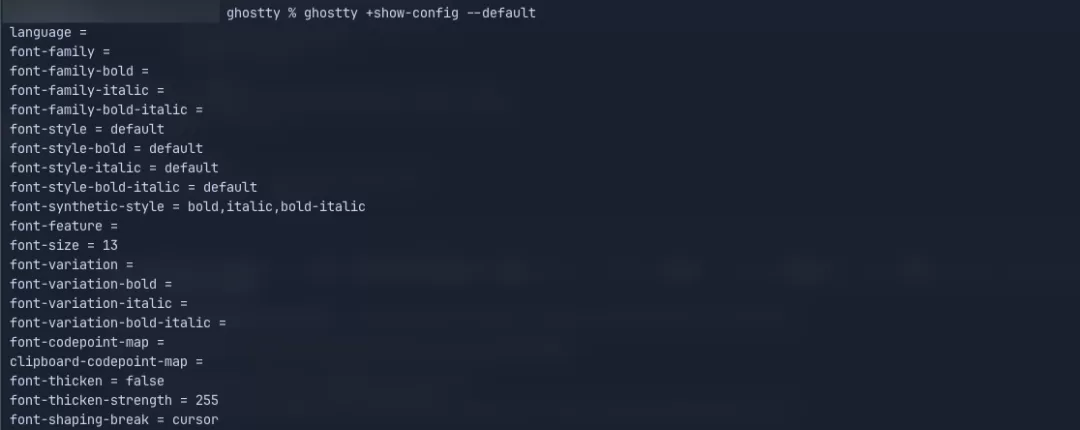
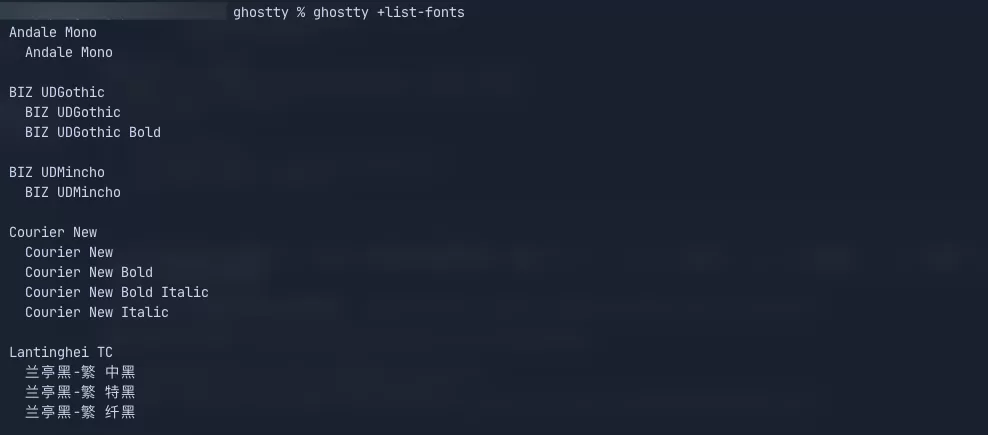
ghostty +list-themes:查看所有内置主题ghostty +show-config --default:查看默认配置ghostty +list-fonts:列出可用字体⌘⇧,:重载配置(无需重启)⌘⇧P:打开命令面板
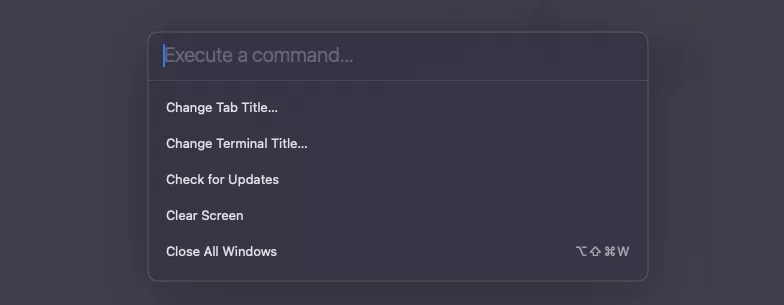
快捷命令包括:Change Tab Title、Change Terminal Title、Check for Updates、Clear Screen、Close All Windows 等。
界面布局
Ghostty 提供传统终端的所有能力,右键可查看功能菜单。通过分屏功能可自由搭建操作台,关闭多余 Panel 使用快捷键 ⌘W。
配置与美化
配置文件路径:~/.config/ghostty/config(注意无后缀名)。常用配置示例:
# --- 字体 ---
font-family = "Andale Mono"
font-size = 14
adjust-cell-height = 2

# --- 主题 ---
theme = Catppuccin Mocha

# --- 窗口外观 ---
background-opacity = 0.85
background-blur-radius = 30
macos-titlebar-style = transparent
window-padding-x = 10
window-padding-y = 8
window-save-state = always
window-theme = auto

# --- 光标 ---
cursor-style = bar
cursor-style-blink = true
cursor-opacity = 0.8

# --- 鼠标 ---
mouse-hide-while-typing = true
copy-on-select = clipboard
保存后使用 ⌘⇧, 重载配置即可生效。官方配置文档:ghostty.org/docs/config/reference。
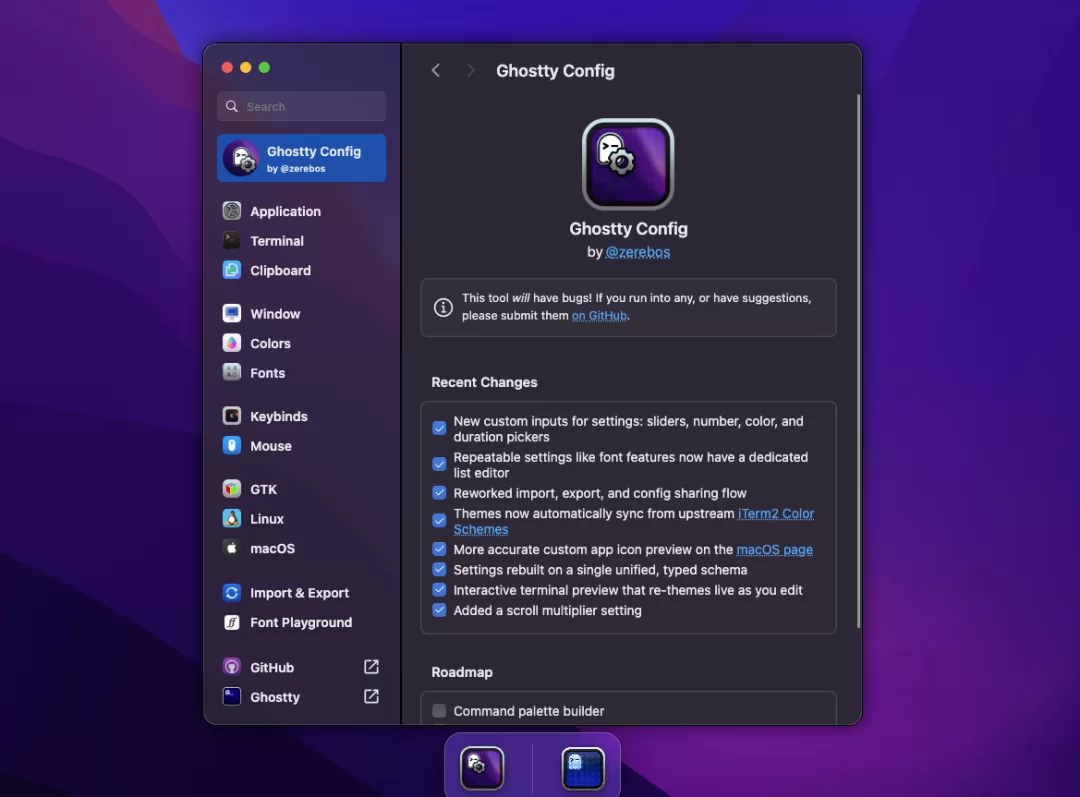
可视化配置:可使用在线工具 ghostty.zerebos.com 进行可视化配置,导出后保存到本地配置文件。
彩虹状态栏(Starship):
# macOS
curl -sS https://starship.rs/install.sh | sh
brew install starship

# 预设配置
starship preset catppuccin-powerline -o ~/.config/starship.toml

# 在 ~/.zshrc 底部添加
eval "$(starship init zsh)"
临时终端(Quick Terminal)
Ghostty 原生支持临时终端功能,可在任意地方随时唤起,随用随起。配置文件添加:
keybind = global:ctrl+`=toggle_quick_terminal保存后使用 ⌘⇧, 重载配置,即可使用快捷键唤起临时终端。

声明:本站原创文章文字版权归本站所有,转载务必注明作者和出处;本站转载文章仅仅代表原作者观点,不代表本站立场,图文版权归原作者所有。如有侵权,请联系我们删除。